
When you’re running a business, every call matters, especially the ones you can’t answer. Whether a caller hangs up before reaching voicemail or leaves a message, missed calls often represent potential customers, sales, or important support needs.
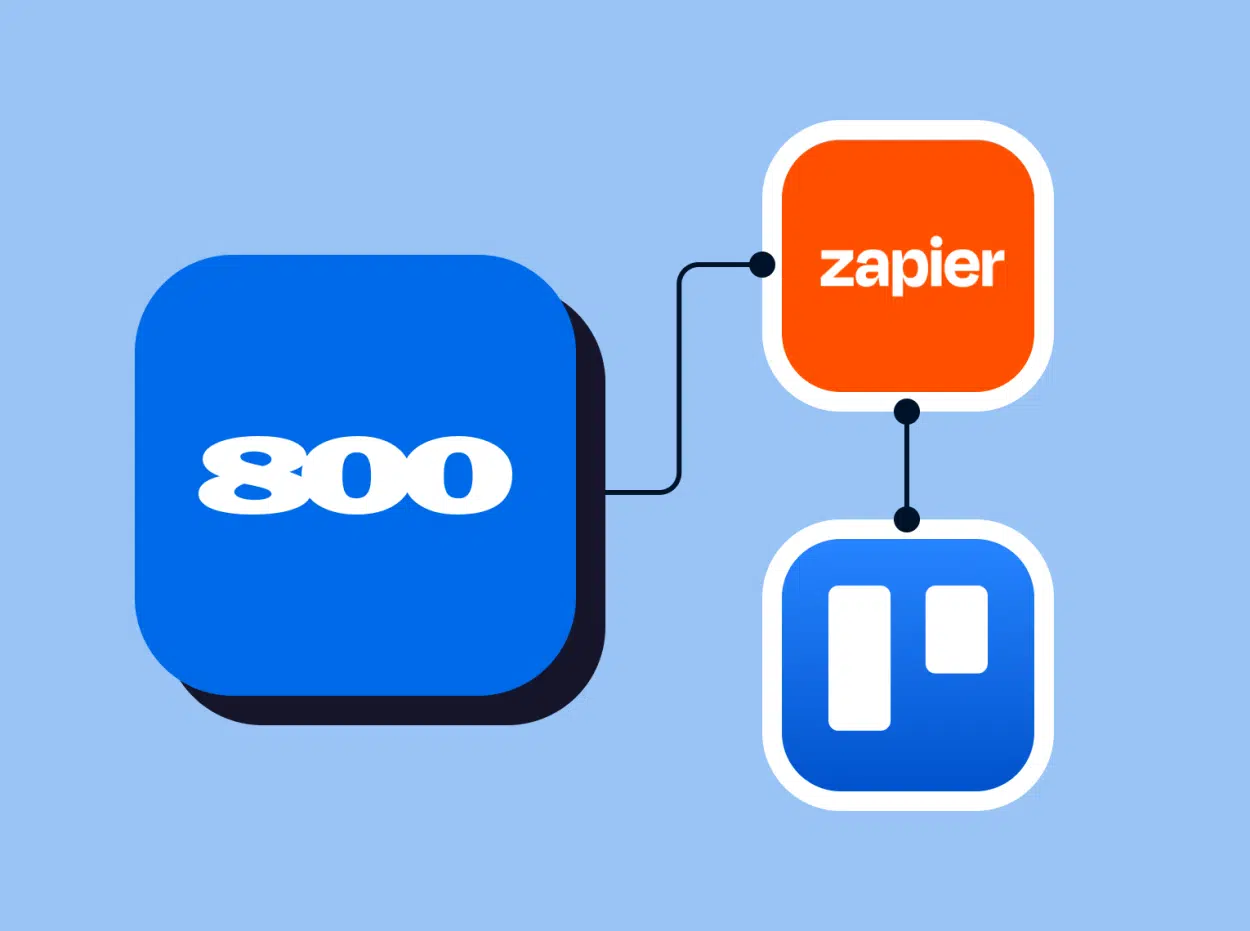
By connecting 800.com and Trello through our Zapier integration, you can automatically send every Unanswered Call into a Trello board, organize follow-ups, and make sure nothing slips through the cracks.
This guide walks you through a simple automation that creates a Trello card every time a call is missed or goes to voicemail, without any coding.
What You’ll Need
• 800.com account
• Zapier account
• Trello account
1. Create Your Trello Board
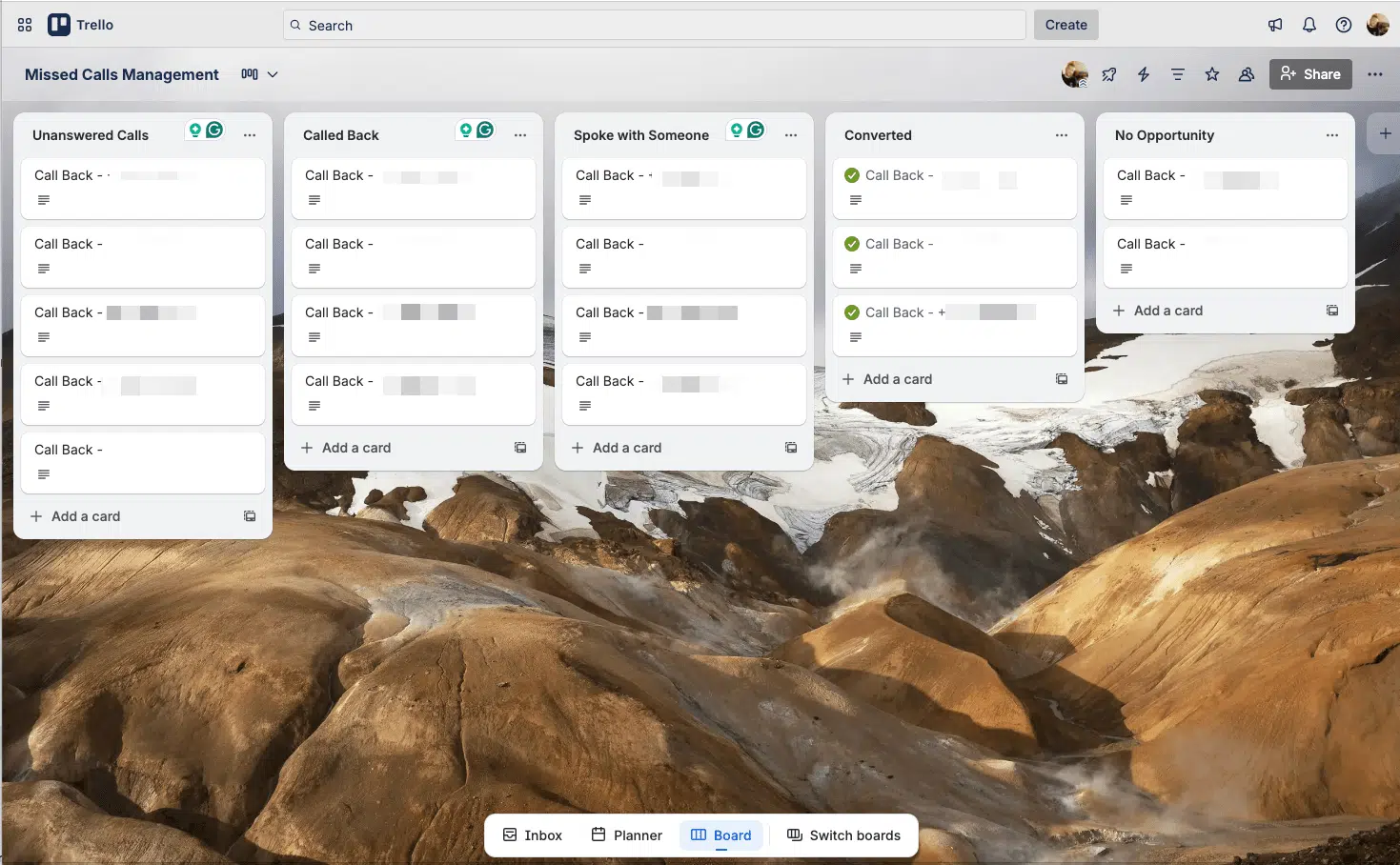
Start by creating a Trello board that will act as your call‑back management hub. We recommend naming the board “Missed Call Management,” although you can adapt the name to suit your business needs.
A helpful structure includes lists such as Unanswered Calls, Called Back, Spoke With Someone, Converted, and No Opportunity. These lists create a natural follow‑up pipeline, allowing you to move each call through the process as your team works through callbacks.
2. Start Your Zap and Choose Your Trigger
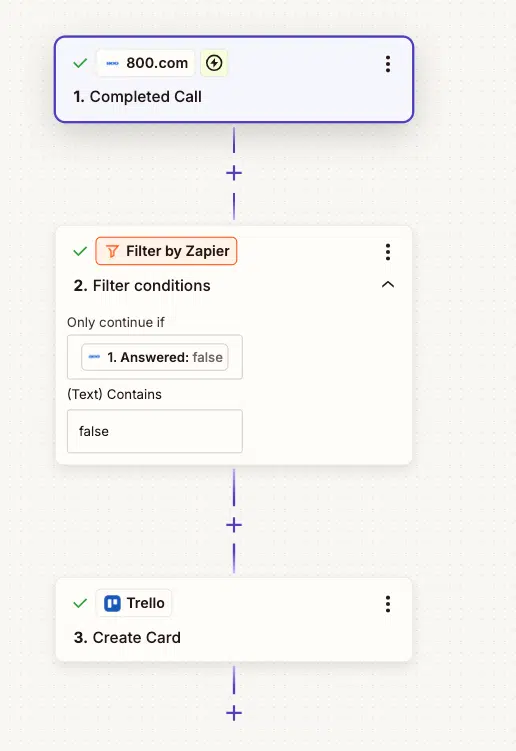
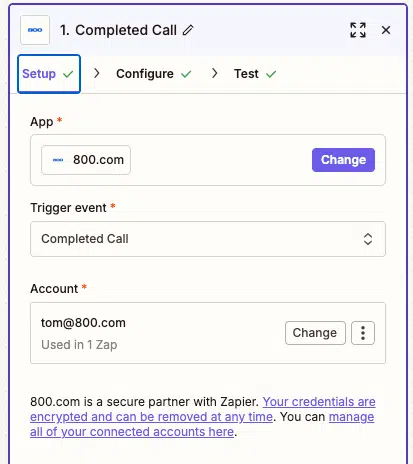
Inside Zapier, create a new Zap and set 800.com as your trigger app. Choose the “Completed Call” trigger. Even though the call was not answered, 800.com categorizes all calls received as Completed Calls, including both calls that go unanswered and those that go to voicemail. This ensures your Zap captures everything that requires attention.
3. Filter for Unanswered Calls
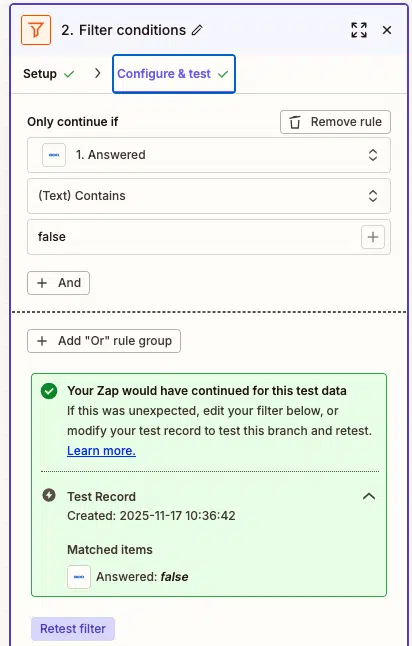
Add a Filter step to narrow your Zap to only the calls that need follow‑up. Set the condition so the Zap continues only if the “Answered” field is marked as false. This allows you to isolate all Unanswered Calls while excluding any calls that were completed live.
4. Create a Trello Card for Each Unanswered Call
Next, add a Trello action step that creates a new card inside your Missed Call Management board. Assign the card to the Unanswered Calls list so that each new call begins in the same place.
For the card title, a simple action-based format, such as “Call Back – [Caller’s Number],” works well. In the card description, include the key details that will help your team quickly review and respond to the call.
Recommended fields include: Missed Call Date, Caller Phone Number, Timeline URL, Voicemail URL, Transcription, and Inbox Link
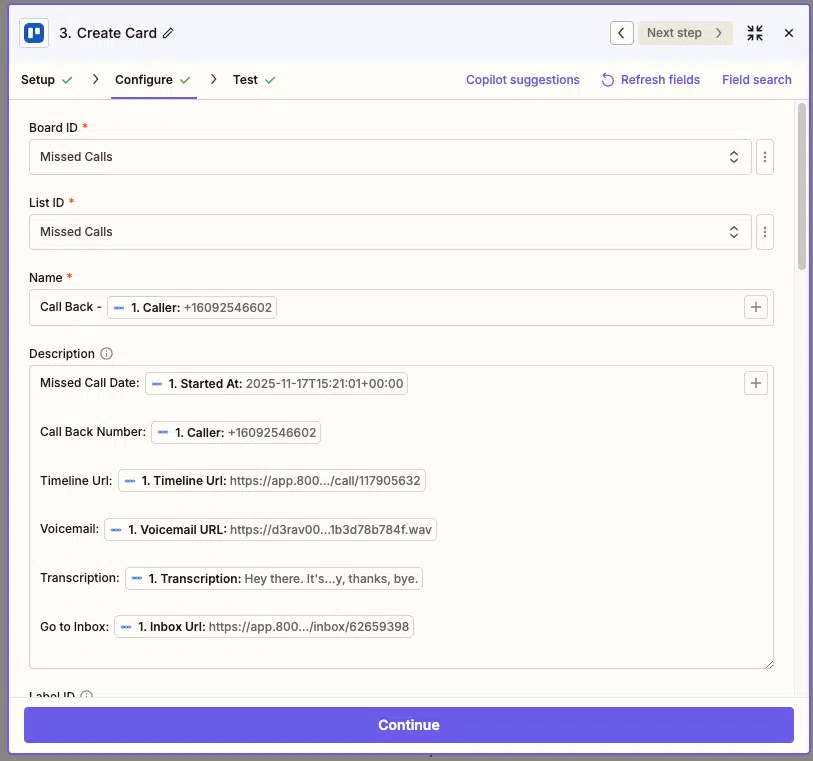
Even when a caller doesn’t leave a voicemail, the other fields offer enough context to understand what happened and prepare for follow‑up.
Use Your Trello Workflow to Manage Follow-Ups
Once your Zap is activated, every missed call will automatically appear in the Unanswered Calls list. From there, your team can review, call back, and move each card along the workflow. Some teams check the board throughout the day, while others conduct a Monday morning review to catch up on weekend calls.
As your team works through each call, move the card to the appropriate list, such as Called Back, Spoke With Someone, Converted, or No Opportunity. This structure keeps your follow-up process visible and ensures someone is always responsible for returning calls.
Why This Automation Helps Your Business
By automating your Missed Calls workflow, you eliminate guesswork and manual tracking. Your team benefits from a clear, organized system that highlights who needs to be called back and where each opportunity stands. This ultimately improves response times, strengthens customer experience, and helps prevent lost revenue.
Ready to Build Your Workflow?
Set up your Zap in just a few minutes and start turning missed calls into organized, trackable follow-ups. If you want to explore additional automations or need help customizing your workflow, the 800.com team is here to support you.